
The CitizenOne app
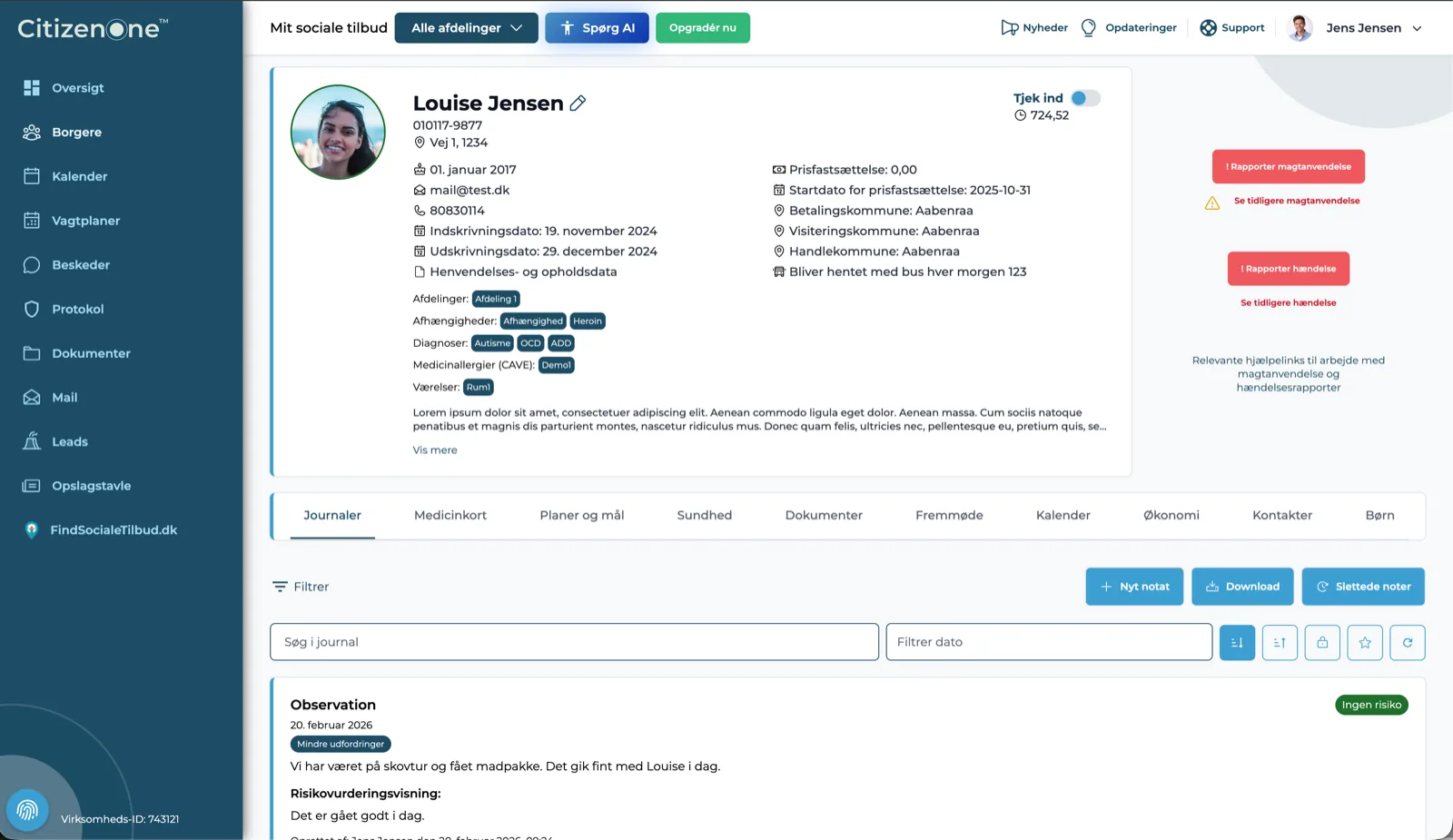
The same app on your computer, phone and tablet
Records, bookings, medication and shift schedules, in supported living as well as in a clinic. On a computer, CitizenOne can be installed as a program of its own, and on phone and tablet it comes from the App Store or Google Play. The same records, the same sign-in, the same data.
Across the working day
One platform. Four working surfaces.
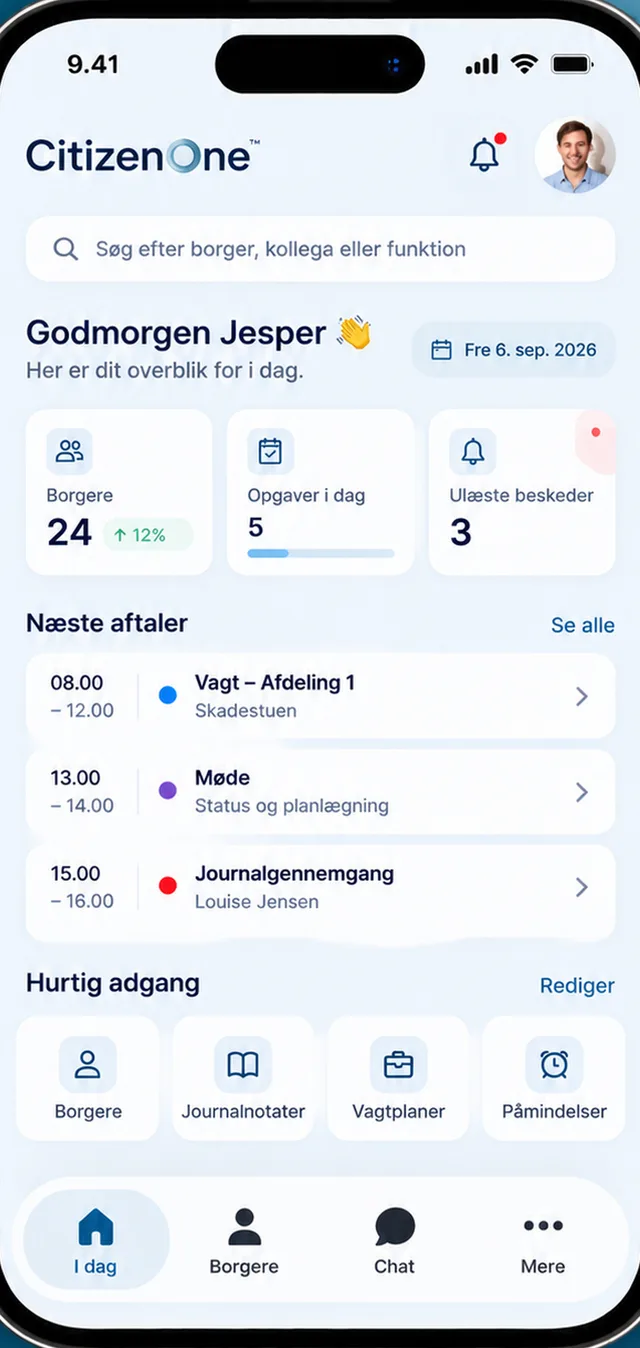
Staff change surface during the day, not system. What was written on the phone in the common room is what a colleague finds on screen at three o'clock.
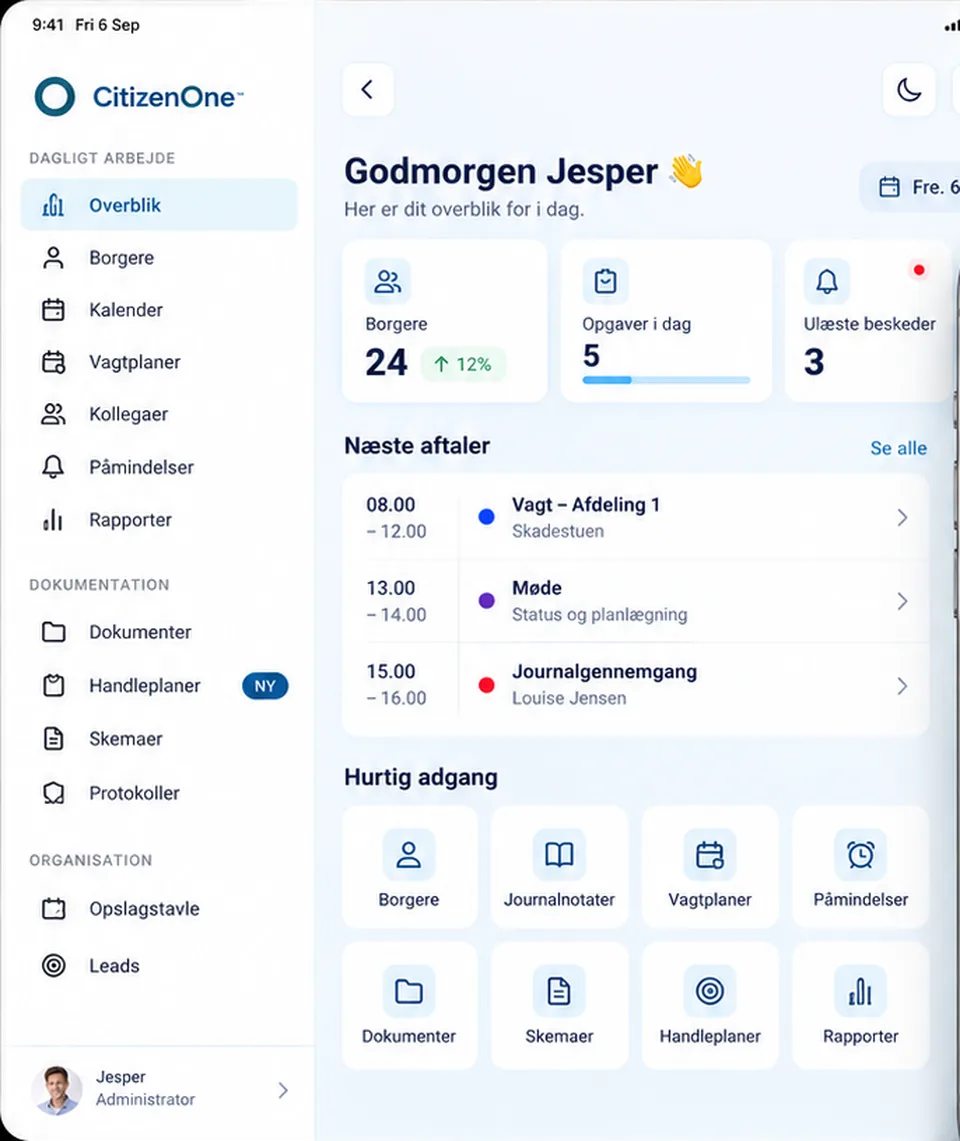
There is rarely a computer on the ward. The iPad shows the sidebar and the content side by side, so looking something up happens at handover, in the meeting and in the common room rather than back in the office.
On the floor
Four places the app makes a difference
Not a list of everything that is possible, but the four situations where the distance between the system and the person gets shorter.
Start the day with an overview
Today brings together the day's citizens or clients, the tasks with a deadline and the day's appointments, so the first half hour is not spent working out what happened overnight.
Appointments and bookings come with you
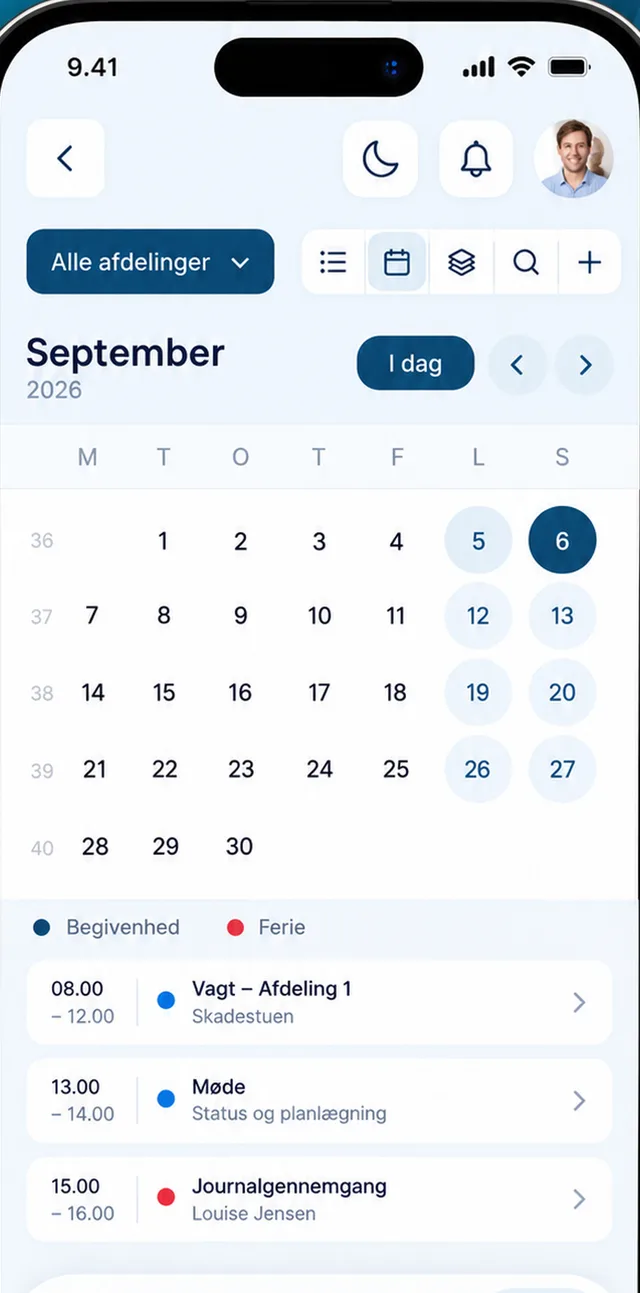
Shifts, meetings and booked appointments in one calendar that can be checked in the corridor or between two sessions rather than in the office.
Document while it is fresh
The note is written where it happens, and it is linked to the care pathway rather than sitting on its own in a document.
Keep the team connected
Internal chat between colleagues, inside the system rather than in a private text thread. Even when the team is two people in a clinic.
Rollout and sign-in
The questions from your IT department
These are the ones that decide a tender, and they are answered in writing, in the form you need them. They are listed here as questions, because a rough answer on a page like this will be read by someone who can check it.
- Can the app be rolled out and preconfigured centrally, so staff do not have to find it and type in an address themselves?
- How do staff sign in, and can it be tied to the identity the organisation already uses?
- What is stored on the device, and what happens when a phone goes missing?
- Which versions of iOS and Android are supported, and how often do updates come out?
- How does accessibility measure up against WCAG 2.1 AA and EN 301 549?
Adoption
How to get your staff started
An app sitting in a store does not get used by itself. This is what works, and none of the five points is something you need to buy.
01
Put the app on the devices
Do not ask staff to search an app store and type in an address. The second step is where most people drop off. If the phones are managed centrally, the app can be there in advance.
02
Start with the shift schedule or the calendar, not the records
Record keeping is work. Their own shift schedule, or the day's bookings, is what staff actually want to see, and so it is the right reason to give in the first message about the app.
03
Make installing it part of week one
An item on the manager's checklist at the start rather than a campaign six months later. Anyone who did not get it installed in week one rarely installs it afterwards.
04
Decide on the shared tablet
On a ward, the tablet sits in the staff office and is used by the whole team. That is a different situation from a personal phone, and it needs to be agreed before it turns into a login everyone knows.
05
Keep track of who has got started
When the manager knows which teams are not using it, the manager is the one who follows up. Without that number, a rollout is guesswork.
Get the app
citizenone.eu/mobil
One link that lands in the right place by itself: the App Store on an iPhone, Google Play on an Android, and this page on a computer. It is the address to put in your onboarding material and on the notice in the staff room.


On a computer there is no download. Open CitizenOne in Chrome or Edge and choose Install in the address bar. It then sits in the Dock or on the taskbar with its own icon and its own window, without tabs or an address bar, and it updates itself.
Try CitizenOne yourself
Create a free account and see the system for yourself. If you would rather see it together with one of our people, book a demo instead.
Free account, no commitment. Two steps, no payment details.
- Juliane
- Marie
- Ditte
- Laurits




Our team is ready to help you get started if you would like a hand with the setup.
Support and sales: +45 80 83 01 14